
How to Fix LCP Issues with
WebP Images in WordPress
Is your WordPress site failing the LCP test? Learn how to fix Largest Contentful Paint issues by converting images to WebP format — step-by-step guide with a free conversion tool.
📋 Table of Contents
If your WordPress website is failing the Largest Contentful Paint (LCP) test in Google PageSpeed Insights, there is a very good chance your images are the problem.
LCP is one of Google's Core Web Vitals — and it directly affects your search engine rankings. A slow LCP score means Google considers your site slow for users, which can push you down in search results and hurt your business.
The good news? Converting your images to WebP format is one of the fastest and most impactful fixes available — and you can do it completely free, right from your browser.
1 What is LCP and Why Does It Matter?
LCP stands for Largest Contentful Paint. It measures how long it takes for the largest visible element on your page to fully load — most commonly a hero image, banner, or featured photo.
Google introduced LCP as part of its Core Web Vitals update because it directly reflects real-world user experience. Studies show that for every 1-second delay in page load, conversions drop by up to 7%.
Google's LCP Score Thresholds
| LCP Time | Google Rating | Impact |
|---|---|---|
| Under 2.5s | ✅ Good | Passes Core Web Vitals |
| 2.5s – 4.0s | ⚠️ Needs Work | Borderline — may impact rankings |
| Over 4.0s | ❌ Poor | Fails — hurts SEO significantly |
- 75% of page sessions must pass LCP for a site to be rated "Good" by Google
- Images account for LCP in over 70% of all web pages
- Switching to WebP can reduce image size by 25–90%
- A 1-second faster load can improve conversions by up to 7%
2 Why Images Are the #1 Cause of Poor LCP
In most WordPress websites, the LCP element is an image — your homepage hero banner, blog featured image, logo, or product photo. When these are large, uncompressed, or in old formats, they take much longer to download.
Common Image Problems That Cause LCP Failures
- Uploading full-size camera photos — Raw camera images are often 3–15MB. WordPress resizes them visually but the file size stays huge.
- Using PNG for photos — PNG is lossless. Great for logos, terrible for photographs. A 500KB JPG becomes a 3MB PNG.
- No compression applied — WordPress does not automatically compress images. You must do this manually or with a plugin.
- Old file formats — JPG and PNG were created in the 1990s. WebP is a modern format specifically designed for the web.
- Images not lazy loaded — Loading all images at once wastes bandwidth and slows the critical LCP element.
3 What is WebP and Why is it Better?
WebP is a modern image format developed by Google, now supported by all major browsers. It uses advanced compression that JPG and PNG simply cannot match — dramatically smaller file sizes with virtually identical visual quality.
WebP vs JPG vs PNG — Real Size Comparison
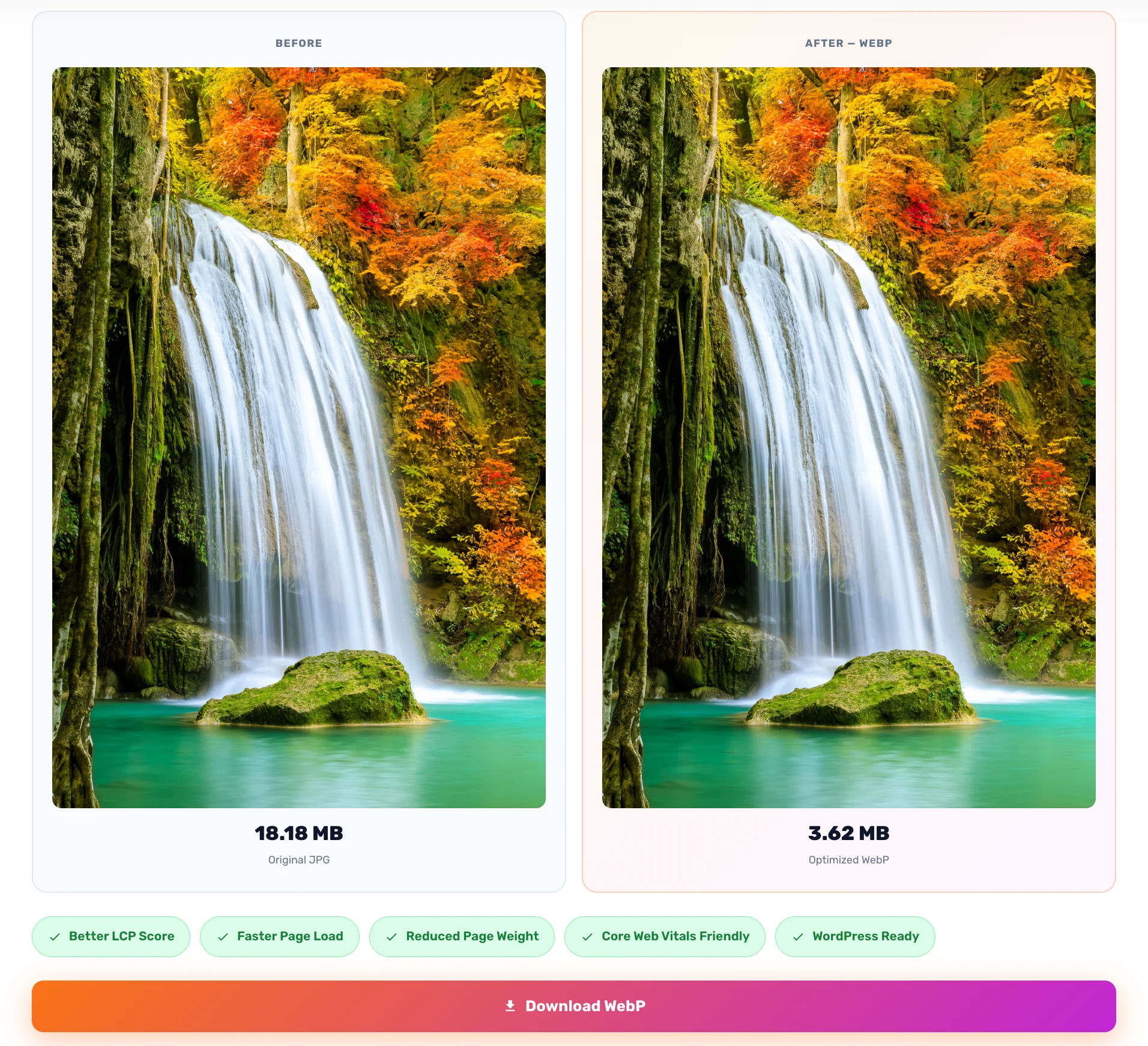
Same image. WebP is 66% smaller than JPG and 90% smaller than PNG. That directly translates to faster load times and a better LCP score.
4 Step-by-Step: Convert Images to WebP for Free
The easiest way to convert your images is using TechSol Agency's free WebP Image Optimizer. It works entirely in your browser — no sign-up, unlimited images, 100% private.
👉 techsolagency.com/image-converter/
Supports JPG, PNG, WEBP, GIF, BMP, TIFF, AVIF, ICO and more. Unlimited images. Forever free.
Step-by-Step Process
-
1Find Your LCP Image Go to pagespeed.web.dev → enter your URL → find "Largest Contentful Paint element" in Diagnostics
-
2Open the Free Converter Visit techsolagency.com/image-converter/ — select Balanced quality mode (85%)
-
3Upload & Convert Drag and drop your image — conversion happens instantly in your browser. Download the WebP file.
-
4Upload to WordPress Dashboard → Media → Add New → upload your .webp file → replace old image in Elementor
-
5Re-Test Your LCP Score Run PageSpeed Insights again — your LCP should improve significantly
- Balanced (85%) — Best for most images. Great quality + maximum savings
- Quality First (92%) — Use for hero images and portfolio photos
- Maximum Speed (65%) — Use for thumbnails and background images
5 How to Automatically Serve WebP in WordPress
For your full site, you want an automated solution that converts all new uploads automatically without manual work.
- WP Rocket — Premium, easiest setup, converts images on the fly
- LiteSpeed Cache — Free, requires LiteSpeed server, excellent WebP support
- Imagify — Dedicated image optimization, free tier available
- ShortPixel — Converts existing images in bulk, affordable pricing
- Cloudflare Polish — Free CDN feature that serves WebP automatically to supported browsers
6 Advanced Tips to Get LCP Under 2.5 Seconds
1. Preload Your LCP Image
Tell the browser to start downloading your hero image immediately. Add this inside your WordPress <head>:
<link rel="preload" as="image" href="/your-hero-image.webp">2. Set Explicit Image Dimensions
Always set width and height attributes on your images. This prevents layout shift and helps the browser allocate space before the image loads.
3. Lazy Load Below-the-Fold Images
Only your LCP image should load immediately. All others should use lazy loading:
<img src="image.webp" loading="lazy" width="800" height="500" alt="Description">4. Use a CDN
A CDN serves your images from the server closest to each visitor. Cloudflare (free), BunnyCDN, and Hostinger's built-in CDN all work great with WordPress.
5. Enable Browser Caching
Your caching plugin (WP Rocket, LiteSpeed Cache, W3 Total Cache) handles this automatically — just make sure it's configured and active.
7 LCP Fix Checklist
- Identified the LCP element using Google PageSpeed Insights
- Converted the LCP image to WebP format using the free tool
- Uploaded the WebP image to WordPress Media Library
- Replaced the old image in Elementor with the WebP version
- Set explicit width and height attributes on the LCP image
- Added preload link for the hero/LCP image in <head>
- All below-the-fold images use loading="lazy"
- Caching plugin is active and configured
- Re-tested PageSpeed Insights — LCP is now under 2.5 seconds ✅
Try the Free WebP Optimizer Now
Convert unlimited images to WebP in your browser. No sign-up. No limits. 100% free forever.